
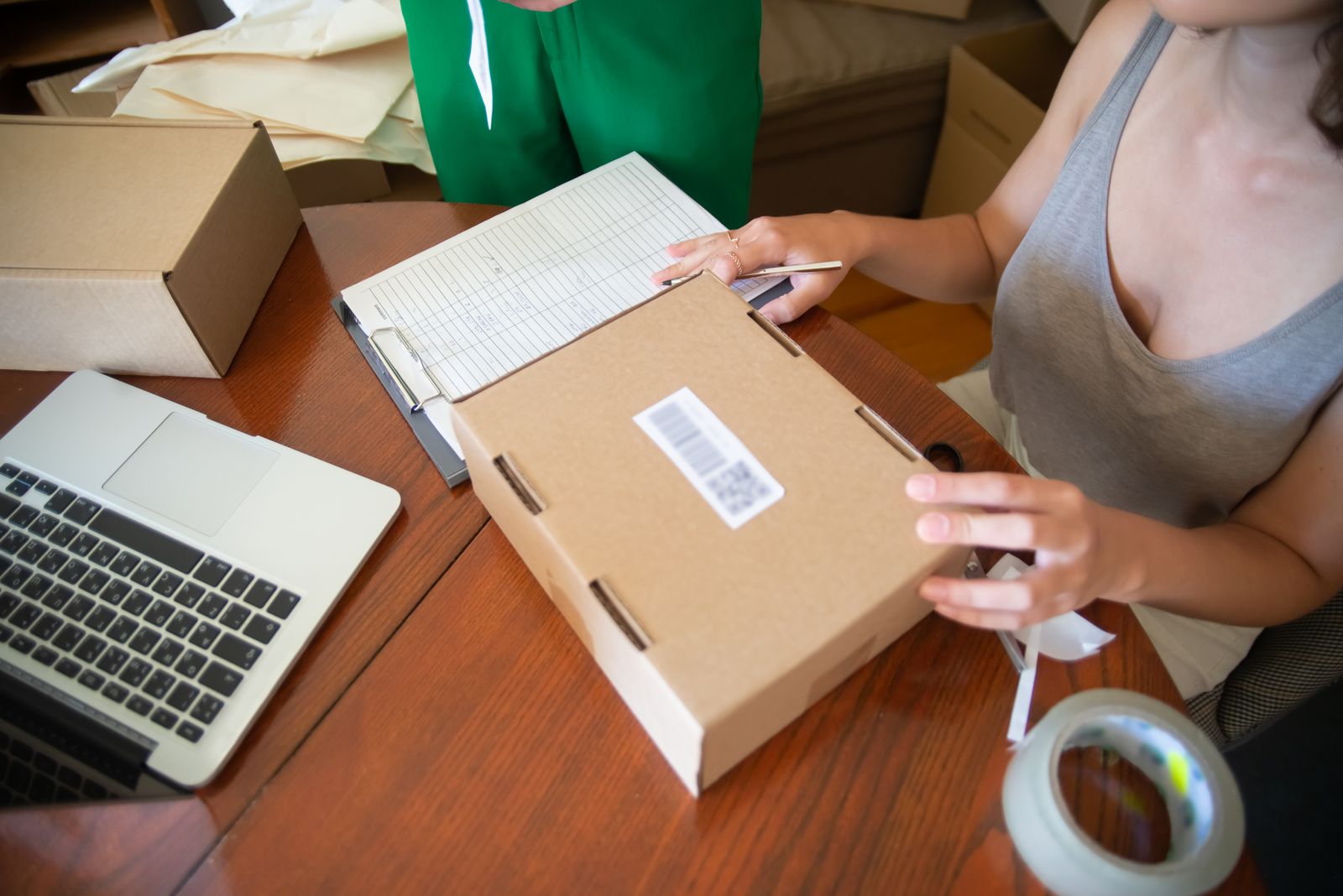
Start with the labels you need to print and the tools you already use. A small desktop label maker may suit organization or product labels, while postage labels have their own size and readability requirements.
A label maker can tidy product packaging, storage bins, inventory, or outgoing orders—but those are different jobs. Before comparing printer names, collect a few examples of the labels you actually use. Note their dimensions, material, quantity, whether they need barcodes, and where they will be applied.
That small inventory helps you avoid buying a machine that prints beautifully but cannot handle your label sizes or software workflow. This guide focuses on the buying questions. It does not claim that a particular printer was tested.
First decide what kind of label you need
Product and packaging labels may need a custom shape, color, logo, or material that can withstand handling. Check supported width, roll or sheet format, adhesive, print resolution, and whether the software can produce the layout you want.
Storage and inventory labels may prioritize clear text, a durable adhesive, and repeatable sizing. Think about where the label will live: a warehouse shelf, a freezer container, a retail box, or a moving bin may need a different label stock.
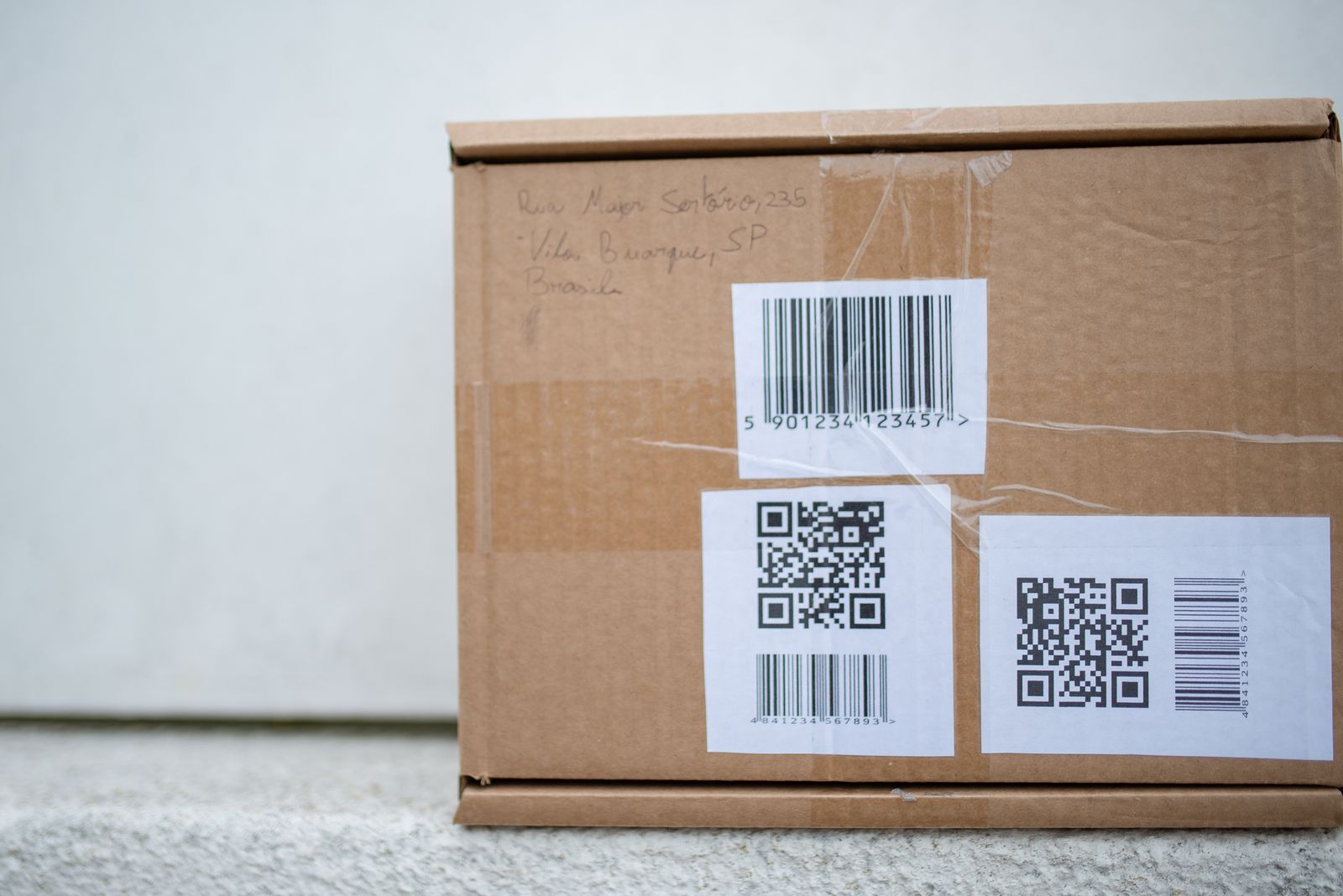
Shipping labels are a separate workflow. The U.S. Postal Service says Click-N-Ship labels can be printed with a standard laser or high-quality inkjet printer, and the label needs to be printed at the correct size with its barcode readable. A dedicated thermal printer may be convenient for frequent shipments, but it is not a requirement for every small seller.
USPS’s Click-N-Ship FAQ provides current label-printing requirements and cautions about scaling and covering barcodes. Check the carrier you use as well; shipping requirements can differ by service.
Compare the decision points
| Check | What to verify |
|---|---|
| Label dimensions | Supported width, height, roll core, and whether the printer handles the sizes you already buy |
| Print method | Thermal, inkjet, or laser; compare upkeep and materials for your volume |
| Connection | USB, Bluetooth, Wi-Fi, or computer-only use; check compatibility with your phone, tablet, and operating system |
| Software | Can you import addresses, edit templates, create barcodes, and save repeat jobs? Are any useful functions paid? |
| Consumables | Cost per roll or sheet, availability, material options, and whether the machine requires proprietary labels |
| Work pace | Typical labels per day, print speed, batch workflow, and time spent reloading or troubleshooting |
| Support | Warranty, manuals, replacement parts, and a clear way to contact the seller |
Do not compare printers by a headline speed alone. A small business may save more time with saved templates and reliable app support than with a slightly faster print cycle. For very occasional shipping, your existing printer may be enough.
Estimate the ongoing cost
Add the printer price to a realistic estimate of labels, replacement rolls, ink or toner where relevant, and any subscription or app fees. Check whether the labels are standard sizes or proprietary. A lower purchase price can become less attractive if every roll costs more or is difficult to find.
Think about failure points too. If the machine is central to shipping, ask what happens when the app loses connection, a print job jams, or supplies run out. Keep a backup way to print essential labels until you know the workflow is dependable.
Match the printer to your workflow
If you create branded packaging labels, prioritize design controls, supported materials, and repeatable color quality. If you organize shelves or bins, focus on durable adhesive, legible text, and quick editing. If you mainly ship orders, test a sample label at actual size and scan it before relying on a new setup.
For sellers comparing compact desktop label makers, see our NIIMBOT brand review. Some links on that review are affiliate links; ReviewClearly may earn a commission if you buy through them, at no extra cost to you. Compare the exact printer model, supported labels, app requirements, and current return terms before purchasing.
If NIIMBOT’s format looks relevant to your workflow, you can explore NIIMBOT label makers. This is an affiliate link; ReviewClearly may earn a commission if you make a qualifying purchase, at no additional cost to you. The link opens the brand’s storefront, so confirm the exact model and supported label sizes there.
A five-minute pre-purchase check
- Save a sample of each label you use.
- Measure the label and note the material and adhesive needs.
- Check the printer’s exact supported sizes and device compatibility.
- Add consumables and software costs to the budget.
- Verify warranty, return terms, and a backup printing option.
The best fit is the printer that handles your real labels with the least extra friction. If your business is still small, begin with one repeat task and scale the equipment only when volume or workflow makes the need clear.
Sources
General editorial guidance. No hands-on product testing or affiliate links are included.