
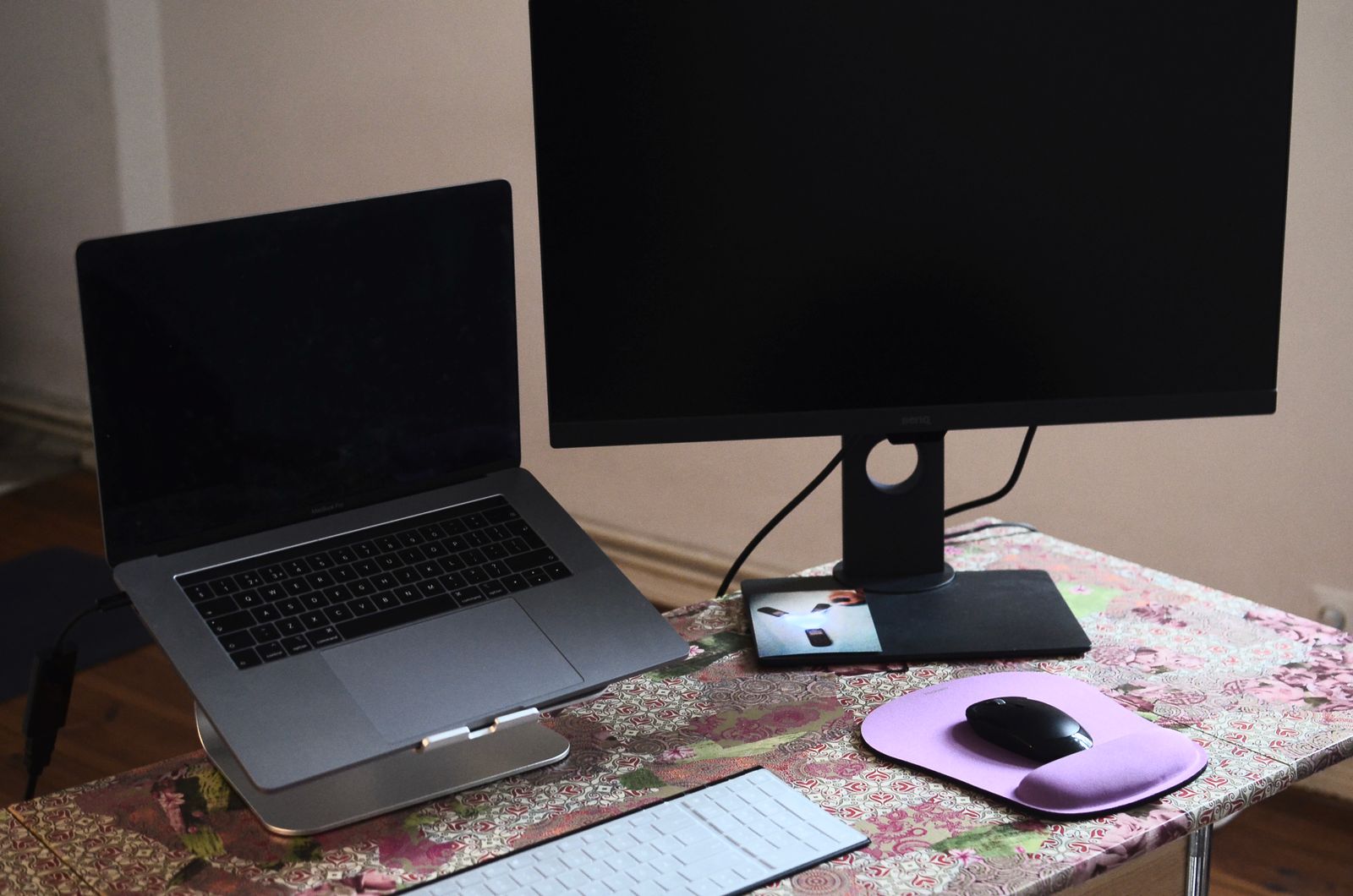
A stand can raise a laptop screen with a modest footprint, but it may require a separate keyboard and mouse. An external monitor adds display area; choose the change that solves your most frequent workspace friction.
If you work mostly on a laptop, a stand and an external monitor can both change your desk. They solve different problems, though. A stand raises the laptop display and frees some desk area; an external monitor gives you a separate screen with more room for documents or side-by-side tasks. Neither is a complete workstation solution on its own.
The right first purchase depends on what bothers you most. Do you lean toward a low screen? Do you regularly switch between windows? Do you need to keep the laptop portable? This guide compares the setup decisions, using general OSHA workstation guidance rather than medical claims or promises about preventing pain.
The quick comparison
| Factor | Laptop stand | External monitor |
|---|---|---|
| Main change | Raises the laptop screen and changes its viewing angle | Adds a separate display with its own size and adjustment options |
| Often needs | External keyboard and mouse for a comfortable typing position | Desk space, a compatible connection, power, and possibly a monitor arm or stand |
| Space | Small stand footprint, but laptop and input devices still occupy the desk | Larger footprint unless mounted; can reduce window switching |
| Portability | Easier to fold or move between locations | Usually better for a fixed desk than travel |
| Best first question | Can I raise the screen while keeping my keyboard and mouse usable? | Would a larger second display help with tasks I do every day? |
A stand can help with screen placement, but plan the rest
A stand is a relatively simple way to raise the laptop display. Before buying, check the laptop’s size and weight, the stand’s supported dimensions, height and tilt adjustments, stability, ventilation design, and folded footprint. A stand that wobbles or cannot hold the screen at a useful height may not solve the problem.
Raising a laptop can make its built-in keyboard awkward to use. If you type for long periods, consider whether you will need a separate keyboard and mouse and where they will sit. Measure your desk before ordering; the stand, laptop, keyboard, mouse, and work materials all need space.
An external monitor adds a second screen to consider
An external monitor can be useful when your work involves comparing documents, keeping a reference visible, or using several windows at once. Check screen size, resolution, ports, cable compatibility, refresh needs for your tasks, height adjustment, and return policy. Make sure the monitor can connect to your laptop without an adapter you have not budgeted for.
The monitor’s included stand may not raise it enough for your setup. Check the adjustment range before you buy an arm or riser, and confirm that your desk can support the mounting method. If you use the laptop as a second screen, decide where it will sit so you are not repeatedly turning your neck to read it.
OSHA’s computer workstation eTool suggests placing the top of the monitor at or just below eye level, keeping the head aligned with the torso, and giving the keyboard and mouse adequate room. It also notes that no single arrangement suits every person. Treat those points as prompts to adjust your own setup, not as a guarantee that one device prevents discomfort.
What should you buy first?
Choose a laptop stand first if the screen sits low and you want a compact desk change. Budget for separate input devices if the raised keyboard becomes uncomfortable. Choose an external monitor first if display space is the main obstacle and you have a stable desk with compatible ports.
If you are not sure, test the problem before spending. Raise the laptop temporarily on a stable, non-slippery support and use an external keyboard if available. Try a borrowed display or connect to a monitor you already own. Observe which change makes your daily work easier without creating a new reach or clutter problem.
Measure and check compatibility
Write down desk depth, laptop dimensions, available ports, outlet access, and where the keyboard and mouse will go. Consider whether you need the setup for video calls, reading, design work, spreadsheets, or travel between rooms. A single external screen may be enough for one routine and frustrating for another.
Our home-office guide offers a broader check of lighting, monitor placement, storage, and other common desk friction. Start with the one adjustment you can describe clearly; then buy only the piece that makes that adjustment easier to maintain.
Sources
General editorial guidance. No hands-on product testing or affiliate links are included.